
Using Text to 3D
Describe one object, choose generation options, understand the exact credit cost, and create a 3D model from text.
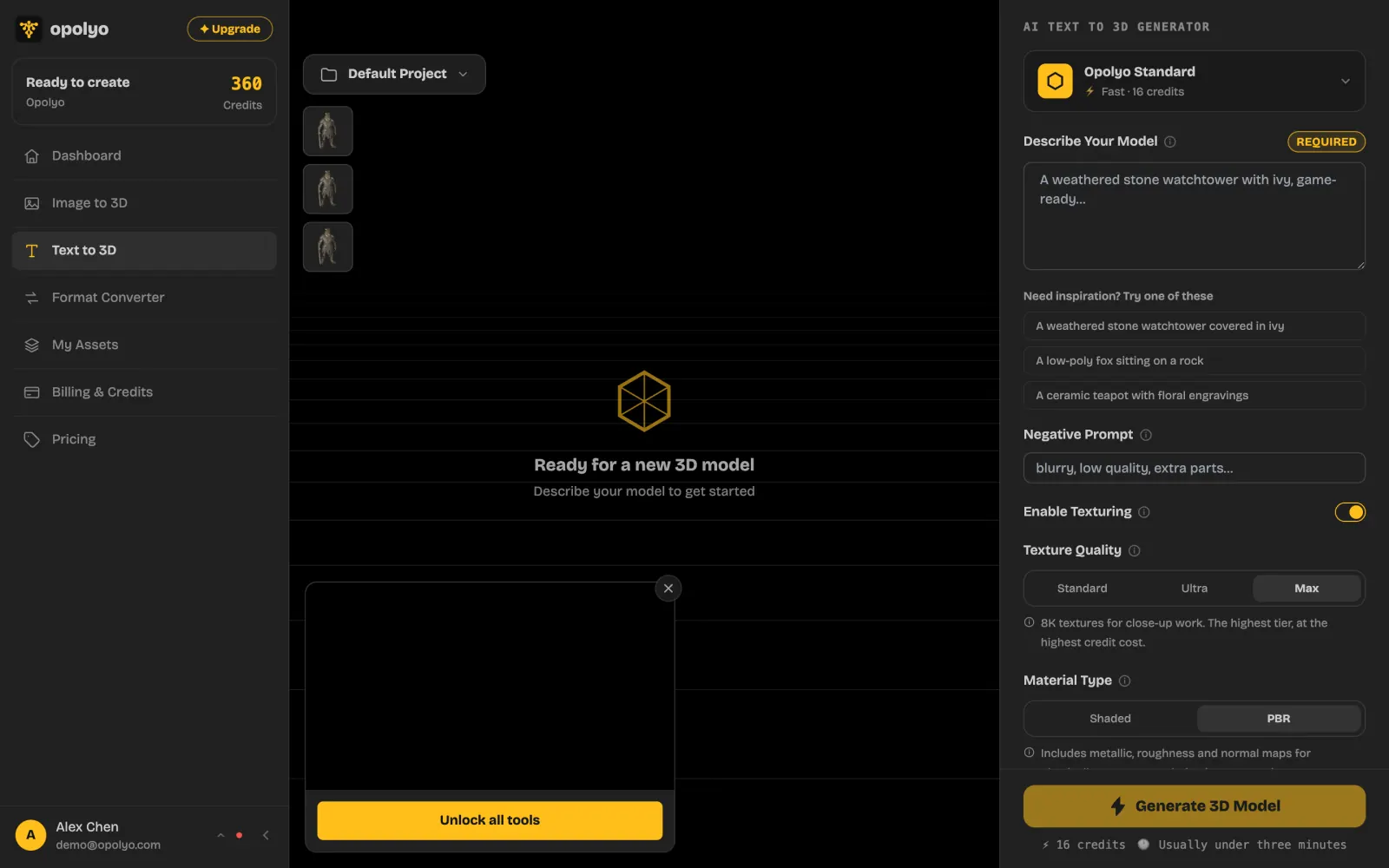
Text to 3D creates a complete 3D model from a written description of one object. A prompt can contain up to 2000 characters, and the workbench shows the exact credit cost for the selected generation options before the job starts.
Write the model description
What should the prompt include?
Start with one recognizable subject. Add the material, pose or arrangement, style, and viewpoint that matter to the result. Keep the description internally consistent and state the most important shape details directly.
| Text field | Limit |
|---|---|
| Describe Your Model | 2000 characters |
| Negative Prompt | 255 characters |
A focused prompt is usually more useful than filling the full limit. For a reusable structure and more examples, see Writing Clear Prompts for 3D Models.
How does the Negative Prompt work?
Use Negative Prompt for unwanted qualities or parts, such as blurry, extra parts, text. It is optional and accepts up to 255 characters. Describe the intended model in the main prompt, then use the negative prompt only for exclusions.
Generate the model
Enter one object description in Describe Your Model. The prompt must not exceed 2000 characters.
Review Enable Texturing, Texture Quality, Material Type, and the controls under Advanced.
Confirm the displayed credit total, then select Generate 3D Model.
Understand the generation options
What do the texture and material settings mean?
Enable Texturing adds color and surface textures. Turning it off creates raw geometry. Texture Quality offers Standard, Ultra, and Max. Ultra maps to the detailed texture tier, while Max maps to the extreme tier and produces 8K textures. Material Type offers Shaded for basic color materials or PBR for metallic, roughness, and normal maps.
What do the geometry settings mean?
Polygon Count (Max Faces) sets a limit from 500 to 2,000,000 faces. Topology offers Triangle for most uses and Quad for editing or animation. Triangle generation produces GLB. Quad generation produces FBX. Auto Size scales the result to real world dimensions.
Geometry Quality set to Detailed requests more geometric detail. Smart Low Poly reduces mesh complexity while preserving the overall form. Disassemble into Parts requests separate components.
What do the Text to 3D seeds mean?
Model Seed fixes the geometry result, Texture Seed fixes the texture result, and Image Seed fixes the internal concept image. Reuse a seed with the same settings for a reproducible rerun, or leave it at Random for a new variation.
Calculate the credit cost
Text to 3D has a base cost of 7 credits and uses the same priced option add-ons as Image to 3D.
| Generation setting | Added credit cost | What it changes |
|---|---|---|
| Base generation | 7 credits | Creates the model geometry. |
| Enable Texturing | +3 credits | Adds color and surface textures. |
| Texture Quality: Standard | +0 credits | Uses the standard texture tier. |
Texture Quality: Ultra (detailed) | +3 credits | Uses higher resolution textures. |
Texture Quality: Max (extreme) | +6 credits | Uses 8K textures. |
| Topology: Quad | +2 credits | Produces quad topology and an FBX result. |
| Geometry Quality: Detailed | +6 credits | Requests more geometric detail. |
| Smart Low Poly | +3 credits | Requests a lower complexity mesh. |
| Disassemble into Parts | +6 credits | Requests separate model components. |
The default selection costs exactly 16 credits: 7 credits for the base generation, 3 credits for Enable Texturing, and 6 credits for Texture Quality: Max. Turning texturing off costs 7 credits. Enabling texturing with Standard quality costs 10 credits.
Check the total before generating
The figure beside the Generate 3D Model button updates when a priced setting changes.
Refine another result
How should you revise a prompt?
Change one important detail at a time. Clarify the silhouette, material, pose, style, or viewpoint, then generate again. If the overall concept is correct but an unwanted detail repeats, add that detail to Negative Prompt.